Known issues
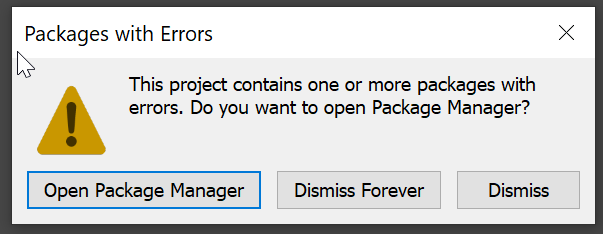
Package Manager UI problem
Usually, a lot of errors appear in the console. Can be caused by old dependencies (used to support a previous Unity version). You just need to remove Package Manager UI from the Package Manager:
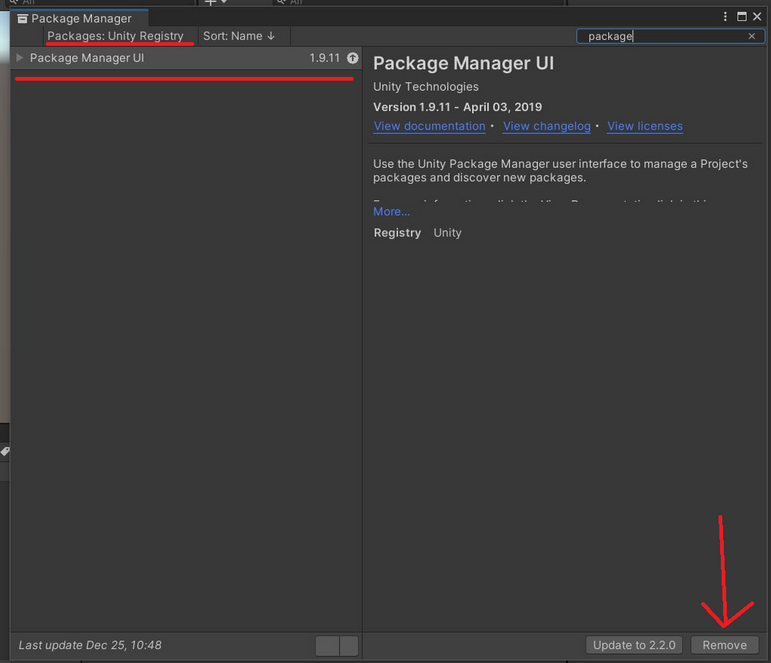
The same issue can occur with Unity Collab — remove or update the Version Control package in this case.
InputSystem problem
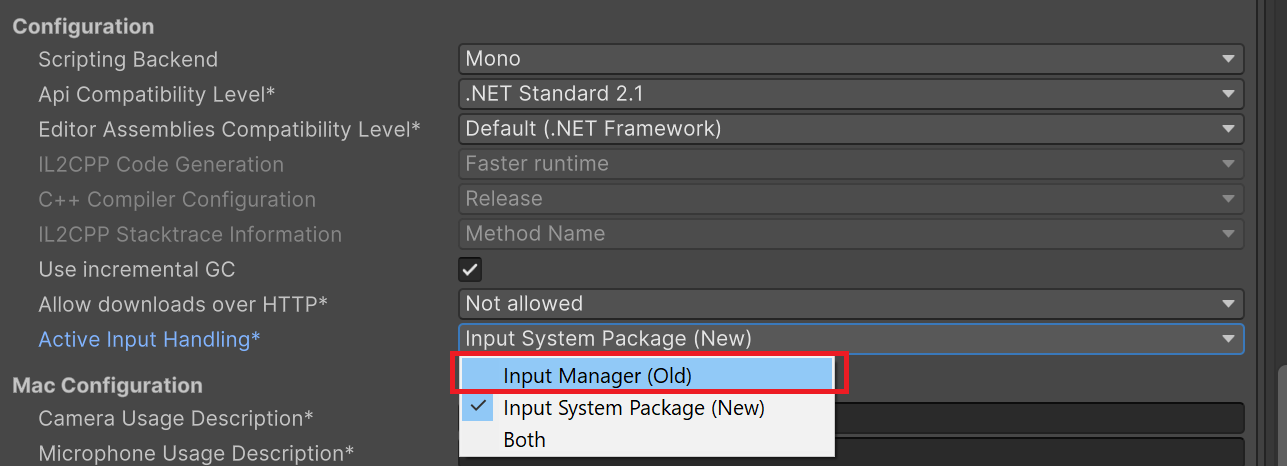
A spamming console error. This error can appear in newer Unity versions.
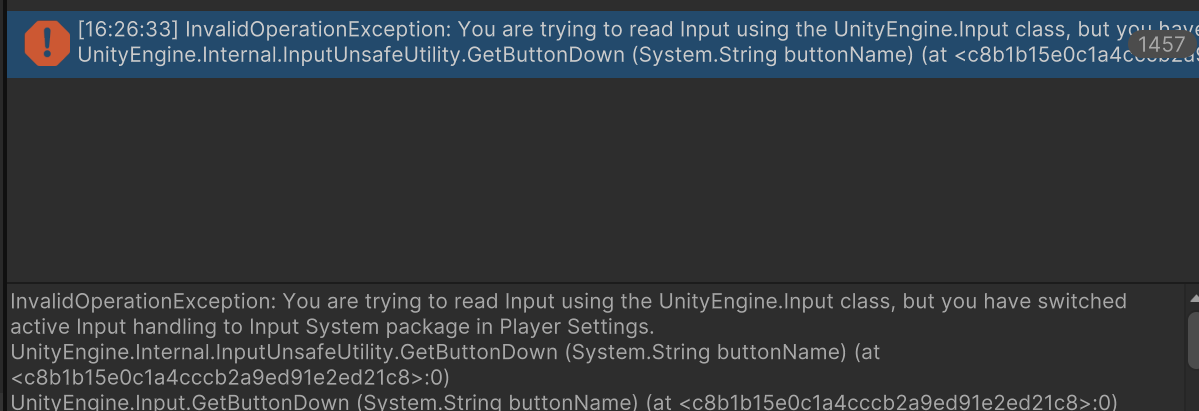
Error says: You are trying to read Input using the UnityEngine.Input class, but you have switched active Input handling to Input System package in Player Settings.
This is because the asset uses the old input system, while your project is configured for the new one. To fix:
Open
Project Settings... -> PlayerScroll to the Configuration tab.
Set value of Active Input Handling to
Old.Restart Unity.
Text Mesh Pro problems
If you see something like this the first time you open the project:
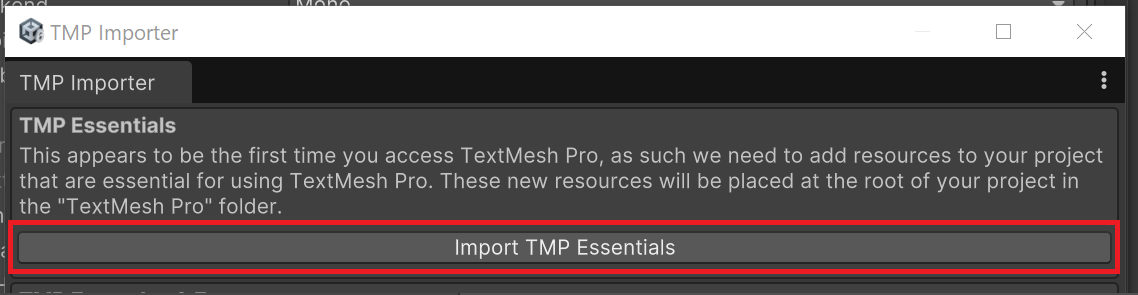
Just click the outlined button. It will import some required Text Mesh Pro assets.
If you ignore it or there is no such window, you will have a font problem like this:
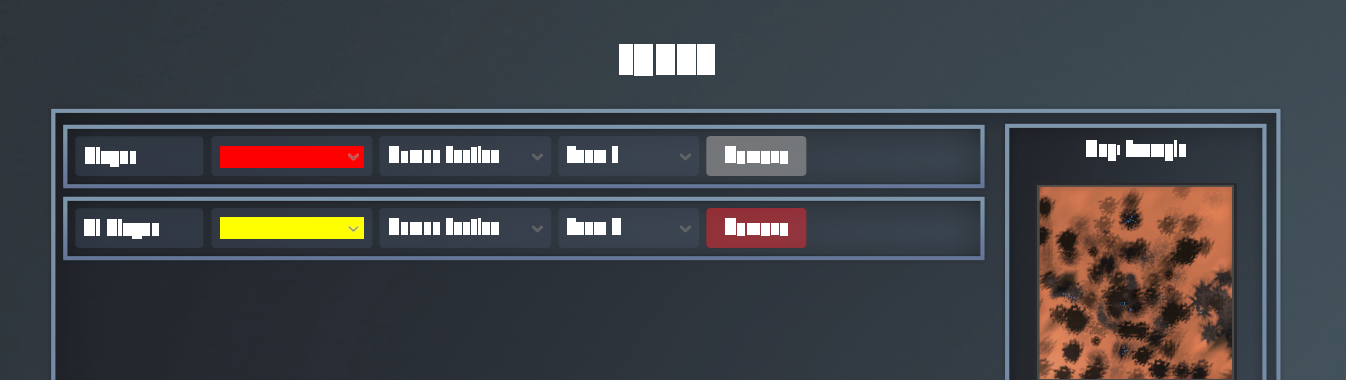
It can easily be fixed by importing the TMP Essentials using this window (you can also open it manually from Unity’s top menu).
The referenced script on this Behaviour (Game Object ‘Main Camera’) is missing!
You can see this warning in the console. You need to install the PostProcessStack v2 package from the Package Manager. It will enable screen post processing effects. This is not necessary to do — you can just ignore this problem.
Asset Editor windows is empty or show wrong info
In known cases, this problem occurs on assembly reload (when you recompile your code, etc.).
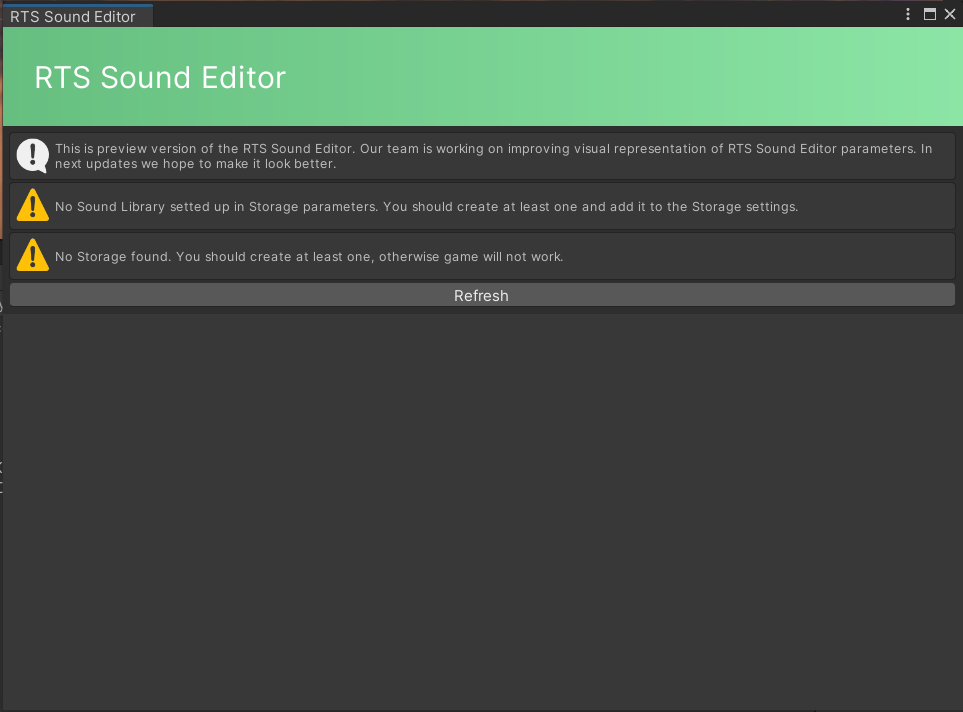
Can be solved by closing and opening the window again. Also, some windows have a Refresh button, which can help solve the issue.
No localization or empty texts in game build
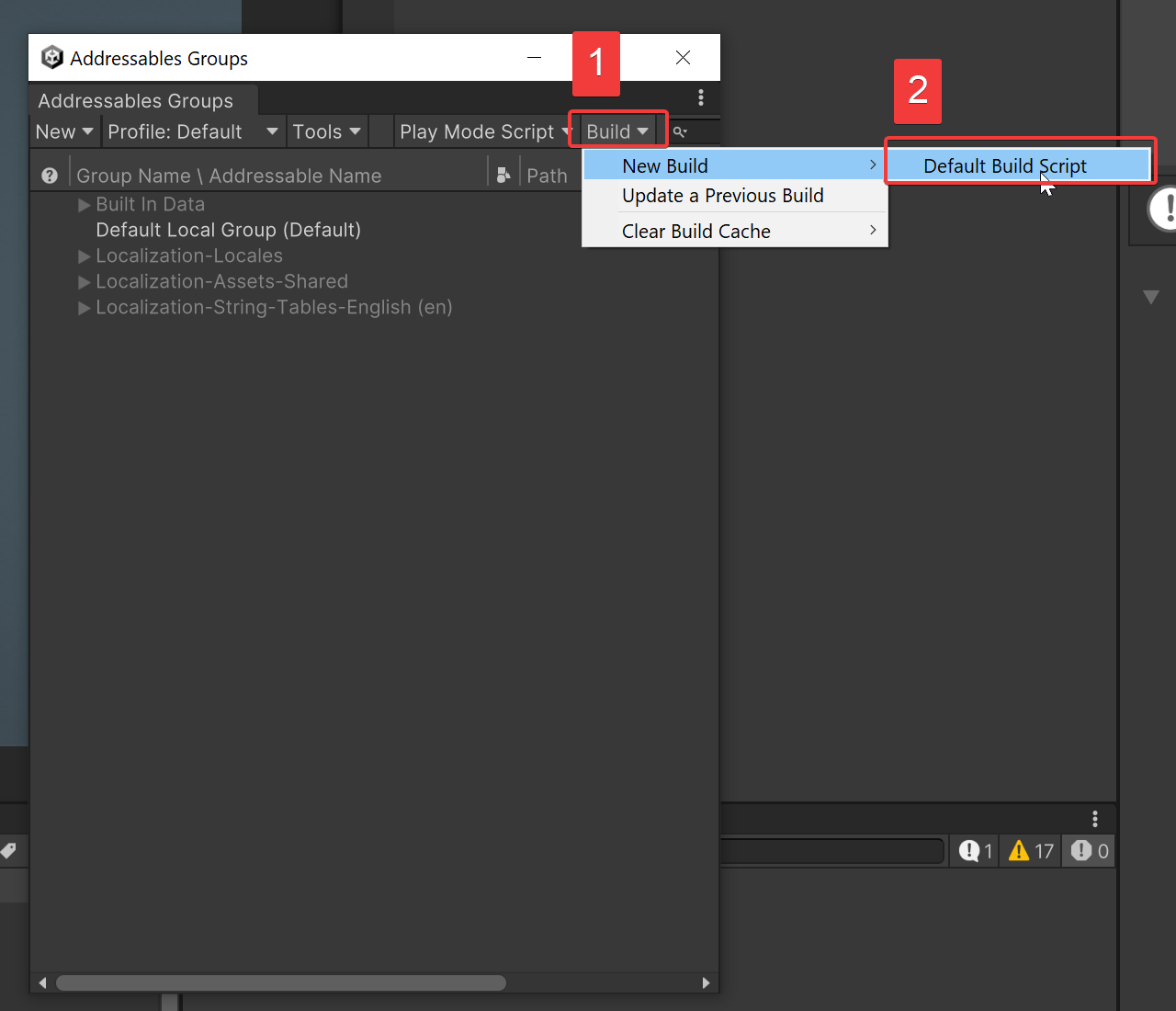
Since the localization package uses Addressables, you need to build the Addressables database before building the game. You can do it from Top menu -> Window -> Asset Management -> Addressables -> Groups.
This will open a window, where you need to click Build -> New Build -> Default Build Script.
After this is done, the build’s localization should work correctly.
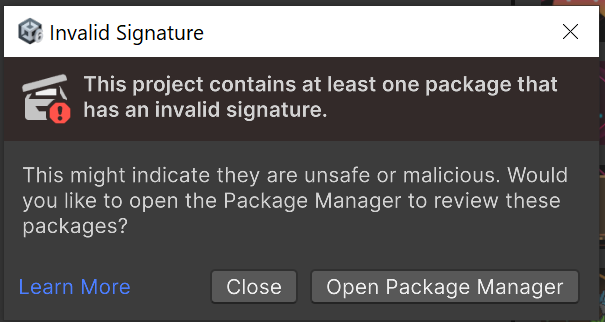
Project contains packages with invalid signatures
This error can occur in Unity 6.2+ versions. You can ignore it or update/remove packages with such problem using Package Manager.