Scenarios
Scenarios allow you to set up custom gameplay situations on your maps: react to something happening (the match starting, a unit dying, a unit entering a certain zone, etc.) by running a sequence of actions (spawn units, give resources, move the camera, end the game, etc.). This is especially useful for singleplayer and campaign games, but it can also be used in a multiplayer implementation with some extra code.
To start working on scenarios, open Top menu -> RTS Starter Kit -> 📜 Scenario Editor. You should do this on your map’s scene (not the Lobby scene, etc.) — it lists every Scenario Settings object already placed in the scene, lets you create new ones, and edit their events/actions.
Note
This partition needs new screenshots of the current Scenario Editor window — the ones that used to be here showed an older version of the tool.
The Scenario Editor
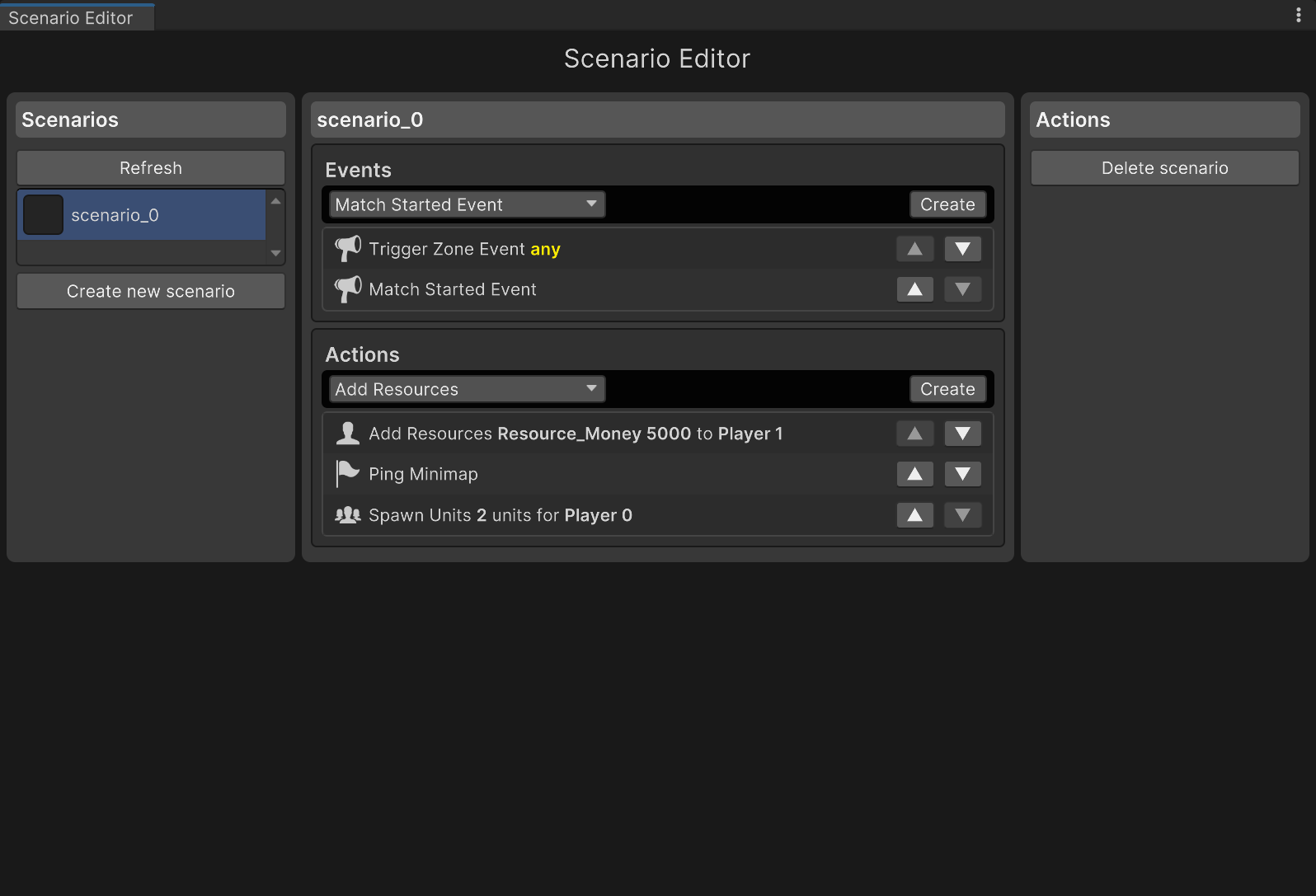
Each scenario is a Scenario Settings component, placed on its own GameObject in the scene. It has two lists:
Events — the condition(s) which need to happen for this scenario to run. If a scenario has several events, any one of them triggers it.
Actions — the sequence of actions that run, in order, once one of the events fires. The next action only starts once the previous one finishes (some actions, like Wait, take more than one frame to finish).
Use the Create button above each list to add a new event or action of the chosen type, the ▲/▼ buttons on a row to reorder it, and double-click a row (or right-click it and choose Edit…) to edit its settings.
Built-in Events
Event |
Description |
|---|---|
Match Started |
Fires once, when the match starts. |
Unit Selected |
Fires when a unit owned by a specific player (or not owned by them, depending on the compare mode) is selected. |
Unit Died |
Fires when a unit matching the configured target dies. |
Trigger Zone |
Fires when a unit enters or exits a Trigger Zone placed on the map (choose Enter or Exit). Currently this reacts to every Trigger Zone in the scene - there isn’t a way yet to react to one specific zone only. |
Built-in Actions
Action |
Description |
|---|---|
Wait |
Waits a set number of seconds before the next action runs. |
Spawn Units |
Spawns a list of units for a target player, cycling through a list of spawn point Transforms. |
Move Order |
Sends the targeted units a move order to a destination waypoint. |
Cancel Order |
Cancels all current orders of the targeted units. |
Change Owner |
Changes the owner player of the targeted units. |
Apply Damage |
Damages the targeted units by a set amount and damage type. |
Select Unit |
Selects the targeted units (for the local player). |
Add Resources |
Adds an amount of a chosen resource to a target player. |
Produce Units |
Queues units into the production line of one or more Production buildings. |
Camera Look At |
Moves the camera to a target point. |
Ping Minimap |
Shows a minimap signal ping at a world point (the same ping shown when units are attacked). |
Game End |
Ends the match - victory or defeat for the local player. |
Run Script |
Runs a custom script of yours (any component implementing |
Skip Remaining Actions |
Completes the current scenario immediately, skipping any actions still queued after it. |
Some actions are unit-targeted (Move Order, Cancel Order, Change Owner, Apply Damage, Select Unit) - they all share the same kind of Target setting, which can be:
Triggered Unit - the unit that actually triggered the event (for example, the unit which entered a Trigger Zone). Not usable with events that have no specific unit, like Match Started.
Specific Unit(s) - a fixed list of
Unitreferences you assign directly in the Inspector (drag scene units into the list).
Similarly, actions which need a player (Add Resources, Spawn Units) currently use a Specific Player target - a fixed player id you set in the Inspector.
Trigger Zones
Trigger Zone is a simple component you can add to any empty GameObject with a Box Collider to detect units entering or exiting an area - it has no gameplay logic of its own by design, it only reports what happened. Add a Trigger Zone event to a scenario’s Events list to react to it.
Extending with your own Events, Actions, and Scripts
You can add your own scenario building blocks by writing plain C# classes:
[System.Serializable]
public sealed class MyCustomEvent : BaseScenarioEvent { }

[System.Serializable]
public sealed class MyCustomAction : BaseScenarioAction
{
  public override string Category => BuiltInActionCategories.Match;

  protected override bool Process(float deltaTime)
  {
    // your action logic here, return true once it's done
    return true;
  }
}
New event/action types you create will automatically appear in the Scenario Editor’s dropdowns. Hooking up your own custom Events to a real game event still requires a small code change on your part (see ScenariosSystem.MakeBuiltInSubscriptions for how the built-in ones are wired up).
If you just need to run a bit of your own code as one step of a scenario without creating a whole new action type, implement IScenarioScript on any component and use the built-in Run Script action to call its Run() method.