Creating a new Map
First of all, you should create a Scene asset with your map. This scene should have: - Terrain (or any object with a collider, marked with the Terrain layer) - Baked NavMesh (to allow units to move) - SceneBase prefab from RTS Starter Kit. - Player Start Points (you can find this prefab in the RTS Starter Kit Prefabs folder).
Next, you should add this scene to the Build Settings. After it is done, open the Maps tab in the Global Editor (Top menu -> RTS Global Editor) and click the Create new button.
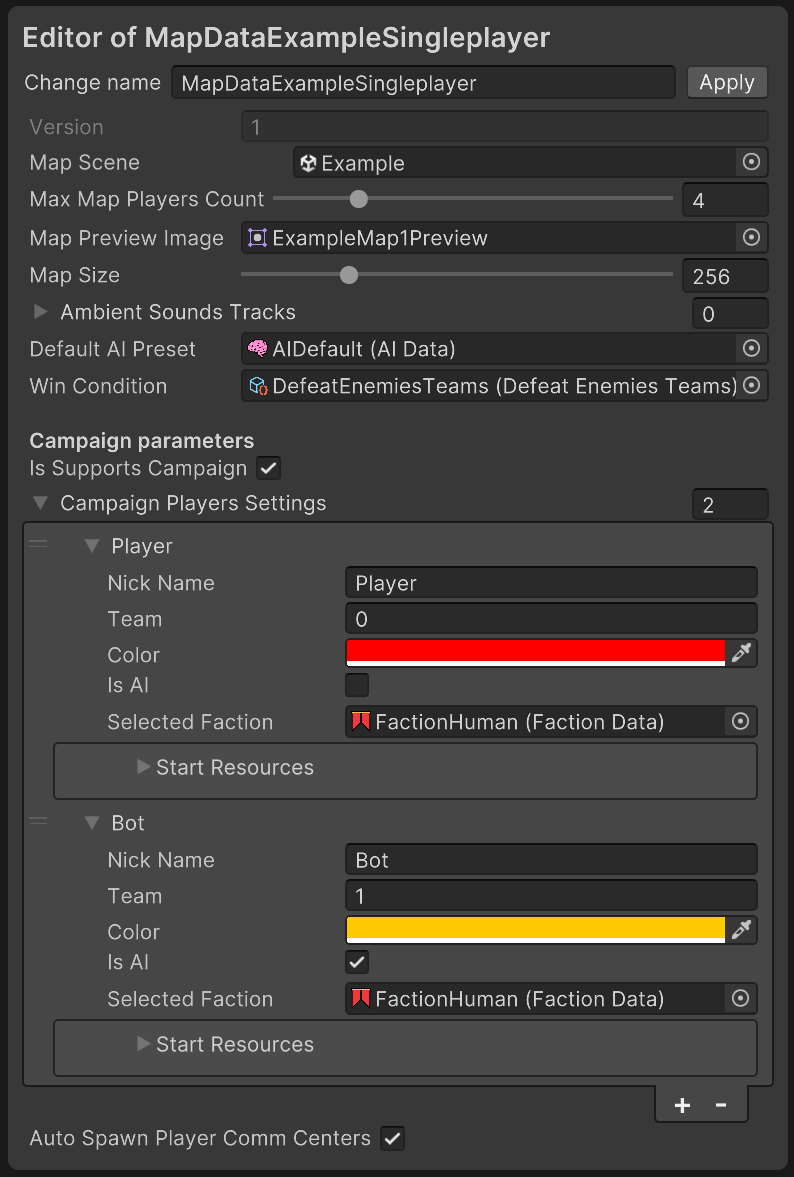
After that, link your map scene to the associated field. Also, set up the other fields (map size, players count, etc.).
Note
You can also create Map Data by right-clicking in the Project Window and selecting RTS Starter Kit -> Map Data.
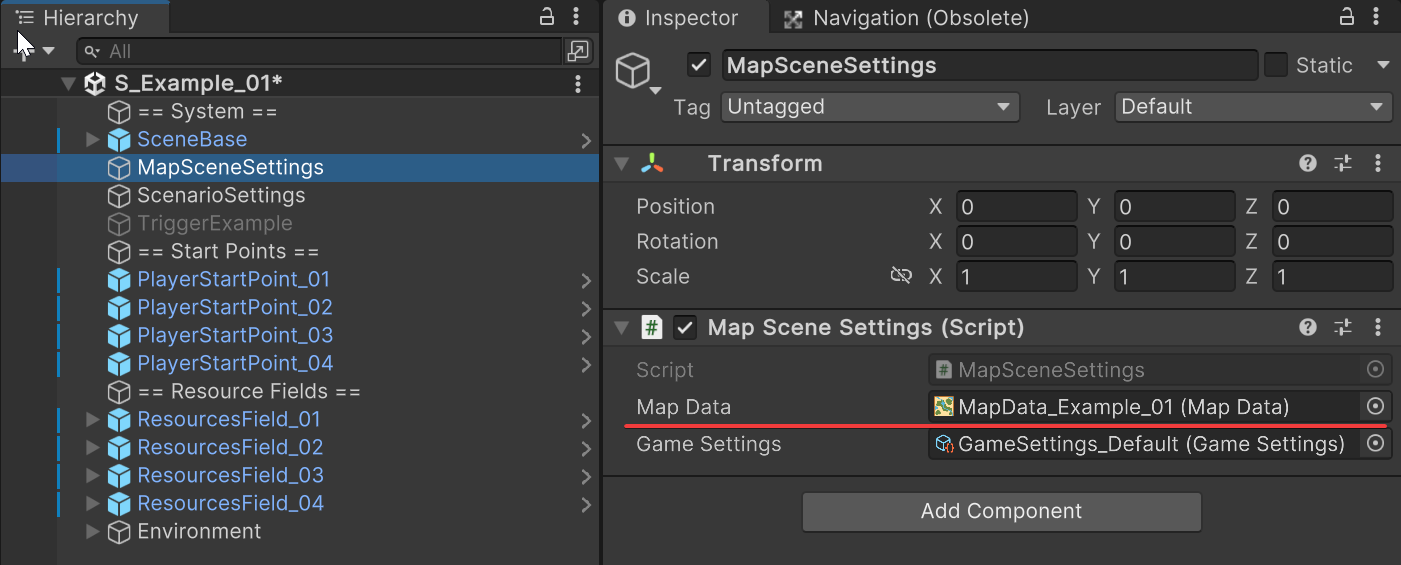
Finally, add a MapSceneSettings component to a GameObject in your map’s scene, and assign this MapData asset to its Map Data field, along with your project’s Game Settings asset to its Game Settings field.
Note
On boot, GameRunner looks for a MapSceneSettings component on the scene and reads Map Data / Game Settings from it. If it’s missing, or one of its fields is empty, GameRunner logs an error and returns the player to the Lobby scene instead of starting the match.